How to use Segment events to power Knock
Learn how to connect your Segment events to Knock to power your product notifications.
Knock's Segment integration enables you to use Segment as a Knock source to power your notifications with track and identify events.
Knock also provides a separate Segment extension for sending Knock notification data into Segment for use in your downstream tools.
Getting started
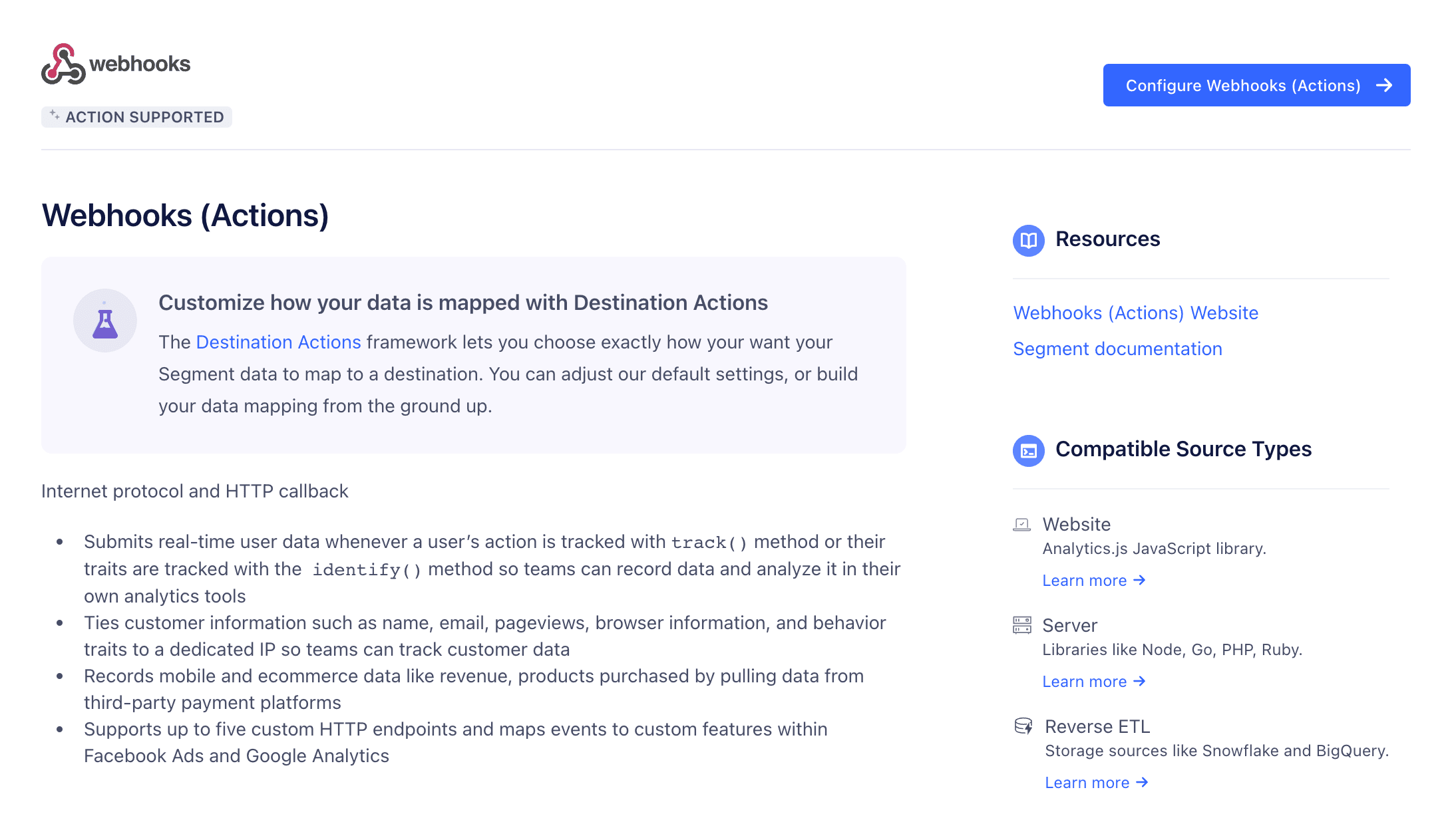
#When using Segment as a Knock source, you also need to configure Knock as a destination within Segment. This means you can use events coming through Segment to power actions in Knock, such as triggering a workflow.
To start routing your Segment events to Knock, navigate to Integrations > Sources under the account settings section of your dashboard, click the "Create Source" button and select Segment. Once created, select it from the list to access the environment configuration page, where you can copy the unique webhook destination URLs for each environment you have configured in Knock.
Configure a Knock destination in Segment
#
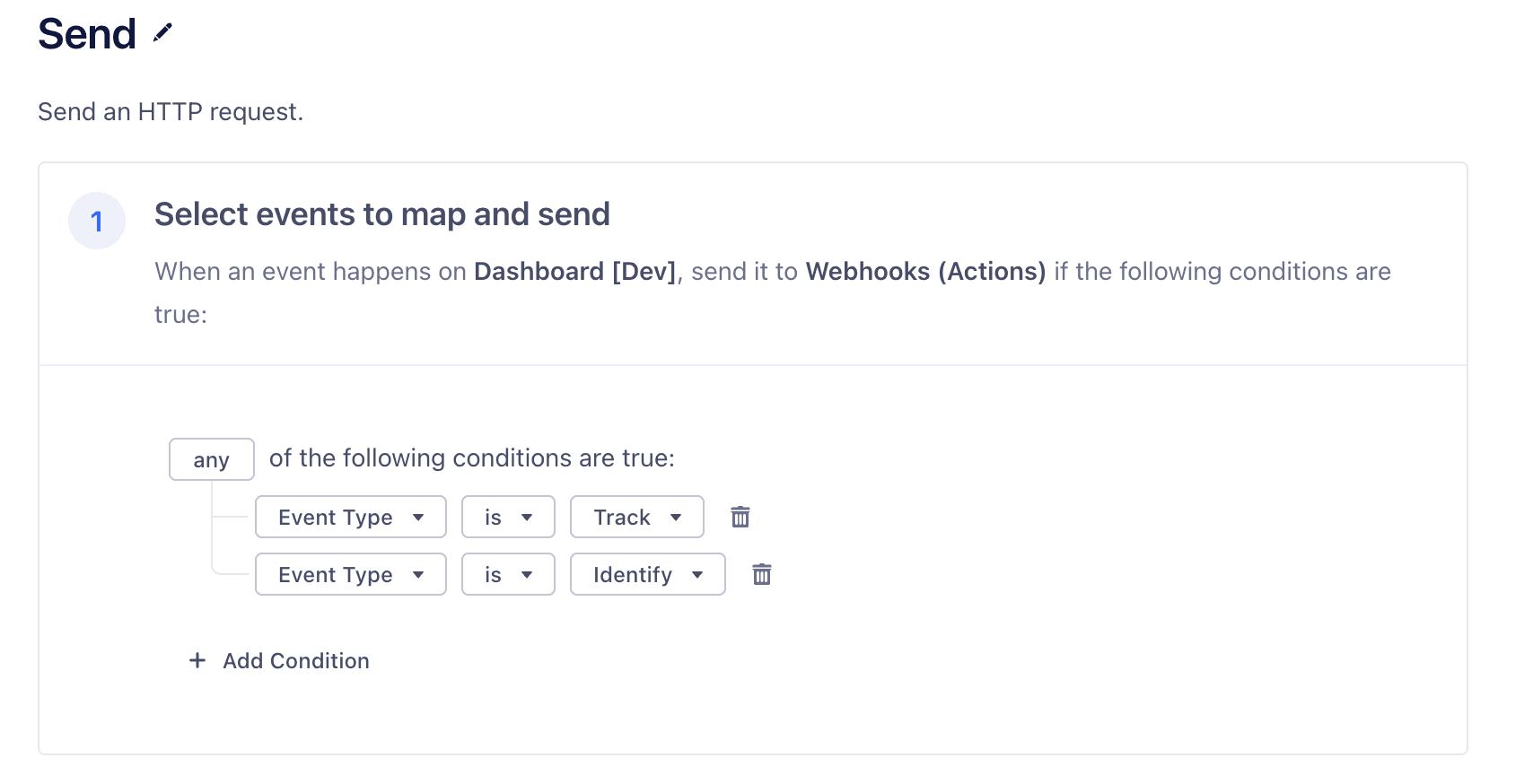
Viewing Segment track events in Knock
#Once your Segment destination is set up, all events you trigger from the Segment source will be forwarded to Knock. Unique events will appear in your list of events under the Source so that you can set up triggers for your workflows.
From the source environment configuration page, click the "View in environment" button on one of the source environments. You'll be taken to the Segment source in the environment you selected, and you should see events sent. If you don't, try clicking the refresh button at the top of the list to refetch any incoming events.
How Knock translates Segment events
#Although Segment has its own event format, Knock translates incoming events into a common format that includes the following fields:
user_id. The ID of the user performing a given action (may not be set if a user has not been identified yet).data. The primary contents of the event. For a Segmenttrackcall with associatedproperties, Knock uses thosepropertiesto set thedatafield.event. The original event, as originally received by Knock.
Triggering workflows from received events
#You can add a track event as a trigger to your workflow directly from the workflow builder. Click on the workflow's trigger step and change the type from "API" to "Source Event." Then you'll be able to select the event and map its properties into the data the workflow needs.
You can have any number of workflows triggered by each event. If no workflow is configured for an event, the event is logged but no action is taken.
Disabling a trigger
#Triggers are automatically enabled when you create them. If you want to stop an event from triggering a workflow, you can go to the trigger page and toggle its status to "Inactive." Keep in mind that this will disable that trigger for the current environment only. When you're ready to trigger the workflow again, you can set it back to "Active."
Enabling Identify events
#When Segment sends identify events, Knock will create and update user information accordingly. Knock will correctly map the userId as the user's id, as well as name, email, phone (mapped as phone_number in Knock), avatar, locale, timezone, and any additional custom properties provided in the traits object. All custom properties are stored on the Knock user object and can be used in templates and other parts of Knock that rely on user properties.
To enable the handling of identify events, open the settings for the source in the relevant Knock environment. You can then enable or disable handling identify events accordingly.
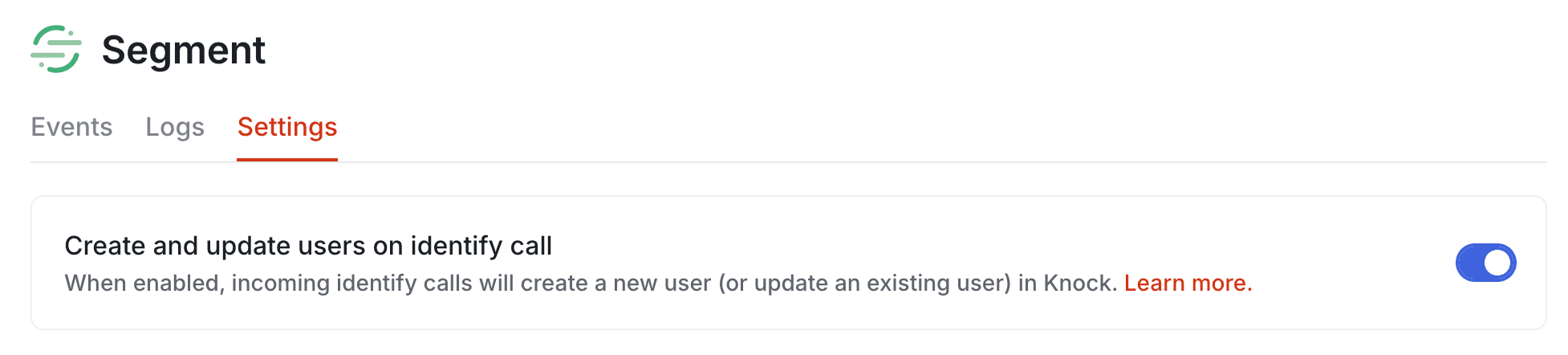
Inline identify users in a Segment event
#In cases where you send a Segment event to Knock with recipients who may not yet have been identified in our system, it's good practice to inline identify your users. By inline identifying your users within your Segment events, you ensure that those users are identified in Knock when your event triggers a workflow.
As an example, take the user-signed-up event below. We're currently mapping the properties.recipients field to the recipients field of our workflow in Knock. If we send this event to Knock before the user with id sam10 has been identified, the user will not be notified.
To ensure the user is notified, we'd change the id reference in recipients to a complete user object, as in the example below. This way, Knock has all the information it needs to identify the user during workflow runtime.
You can learn more about inline identification in our documentation on identifying recipients.
Event idempotency
#You can enable idempotency checks to deduplicate Segment events that have already been received and processed. This is useful if you know Segment may send duplicate events to Knock.
Knock automatically uses the messageId field from the Segment track spec as the idempotency key. No additional field configuration is needed — Segment includes a messageId in every track and identify event by default.
To enable idempotency, open the Settings tab for your source environment configuration and toggle idempotency checks on.
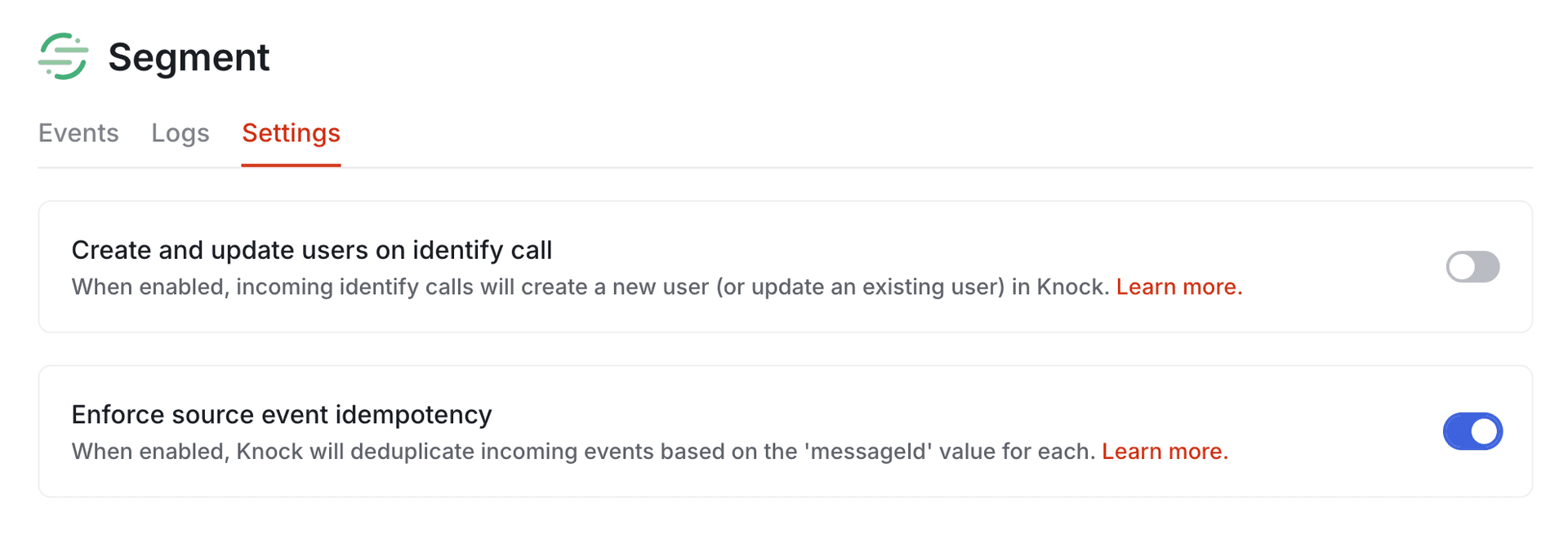
Events without a messageId are processed normally. For details on how Knock handles idempotent events, key validation rules, and the default 24-hour idempotency window, see the source event idempotency section of the sources overview.