HTTP source
Send custom webhook events from any service into Knock using the HTTP source.
The HTTP source enables you to receive webhook events from any service that can make HTTP callbacks and map those events to actions inside Knock. Use it when you need to connect a service that Knock does not yet offer a pre-built integration for, or when you want to send events from your own internal tools and applications. The HTTP source supports optional signature verification so you can ensure that incoming payloads are authentic.
Custom webhooks
#When to use custom webhooks
#Custom webhooks are the right choice when:
- The service you want to connect does not have a pre-built Knock source integration.
- You are sending events from an internal tool, custom application, or microservice.
- You need full control over event type identification and field mapping.
For services with pre-built integrations (Stripe, Clerk, WorkOS, Supabase, PostHog), use those dedicated source pages instead. They provide automatic signature verification and pre-configured event types.
Getting started
#Signature verification
#Signature verification enables you to confirm that webhook payloads received by Knock were sent by your service and have not been tampered with in transit. While optional, enabling signature verification is recommended for any production integration.
When signature verification is enabled, Knock expects every incoming request to include an HMAC-SHA256 signature computed from the raw request body and the signing key associated with your source environment. If the signature is missing or does not match, Knock rejects the request with a 401 response.
How it works
#- Your service computes an HMAC-SHA256 hash of the raw JSON request body using the signing key from your Knock source environment configuration.
- Your service includes the resulting hex-encoded signature in the
X-Knock-Signatureheader of thePOSTrequest. - Knock recomputes the signature server-side using the same signing key and compares it with the value in the header.
- If the signatures match, Knock accepts and processes the event. If they do not match, Knock rejects the request.
Enabling signature verification
#You can enable signature verification from the Settings tab on your source environment configuration page. Once enabled, Knock enforces signature checks on every incoming request for that environment. Make sure your sending service is computing and including the signature before you enable this setting, otherwise Knock rejects all incoming events.
Computing the signature
#To compute the signature, use the HMAC-SHA256 algorithm with your signing key and the raw request body as inputs. The result must be hex-encoded and sent in the X-Knock-Signature header.
Below are reference implementations in common languages.
Important considerations
#- Use the raw body. Compute the signature from the exact bytes you send as the request body. If you serialize the JSON, sign it, and then re-serialize, the signatures will not match.
- Store the signing key securely. Treat the signing key like any other secret. Use environment variables or a secrets manager rather than hardcoding it.
- Rotate keys carefully. If you need to rotate a signing key, update the key in your sending service first. Then generate a new key in Knock. There will be a brief window where requests signed with the old key are rejected, so coordinate the change during a low-traffic period or pause event sending while you rotate.
- Signature failures. If Knock rejects a request due to a signature mismatch, the event appears in your source logs with a verification failure status. Check that the signing key matches and that no middleware is modifying the request body before it reaches Knock.
Configuring event types
#When Knock receives an event from a custom webhook, it needs to know how to identify the event type from the payload. You configure this by specifying a key path that tells Knock where to find the event type value in the JSON body.
For example, if your service sends payloads like:
You would set the key path to event_type so Knock can identify this as a task.completed event.
You can also specify an optional timestamp path if your payloads include a timestamp field that you want Knock to use as the event time instead of the ingestion time.
Event-action mappings
#After events start flowing into Knock, you can configure what action Knock should take when it receives each event type. From the source environment configuration page:
- Select an event type from the list of received events.
- Click "Create action mapping" to add a new mapping.
- Choose the action to execute (trigger workflow, identify user, set object, and so on). See the available actions in the overview for the full list.
- Map fields from the incoming payload to the parameters the action requires.
You can create multiple action mappings for a single event type. For example, a customer.created event could both identify a user and trigger a welcome workflow.
Field mapping
#Field mappings use dot-notation paths to extract values from the incoming JSON payload and map them to the parameters each action expects.
Given a payload like:
You could create the following mappings when triggering a workflow:
A few things to keep in mind:
- Paths are case-sensitive and follow the structure of your JSON payload.
- You can map a single event to multiple action parameters.
- Knock validates that required fields are populated before executing the action. If a required field is missing, the action is skipped and an error appears in the action log.
Example: task management app
#Suppose you have a task management app that sends a webhook when a task is assigned. The payload looks like this:
To trigger a notification workflow when a task is assigned:
- Set the key path to
event_type. - Wait for a
task.assignedevent to arrive (or send a test event). - Create an action mapping that triggers your
task-assignedworkflow. - Map
data.assigned_toto Recipients anddata.assigned_byto Actor. - Map
data.task_idanddata.titleto workflow data fields so you can reference them in your notification templates.
Debugging
#You can see a log of all events received per source under Integrations > Sources in the Knock dashboard on the "Logs" page for your configured source. Common issues to look for:
- Missing fields. A required field path does not exist in the incoming payload. Check that the dot-notation path matches your payload structure.
- Invalid paths. The key path for event type identification does not resolve to a value. Verify the path against a sample payload.
- Type mismatches. A field value does not match the expected type (for example, passing a string where a user ID array is expected).
Event idempotency
#You can enable idempotency checks to deduplicate custom webhook events that have already been received and processed. This is useful if the service sending webhooks may deliver the same event more than once.
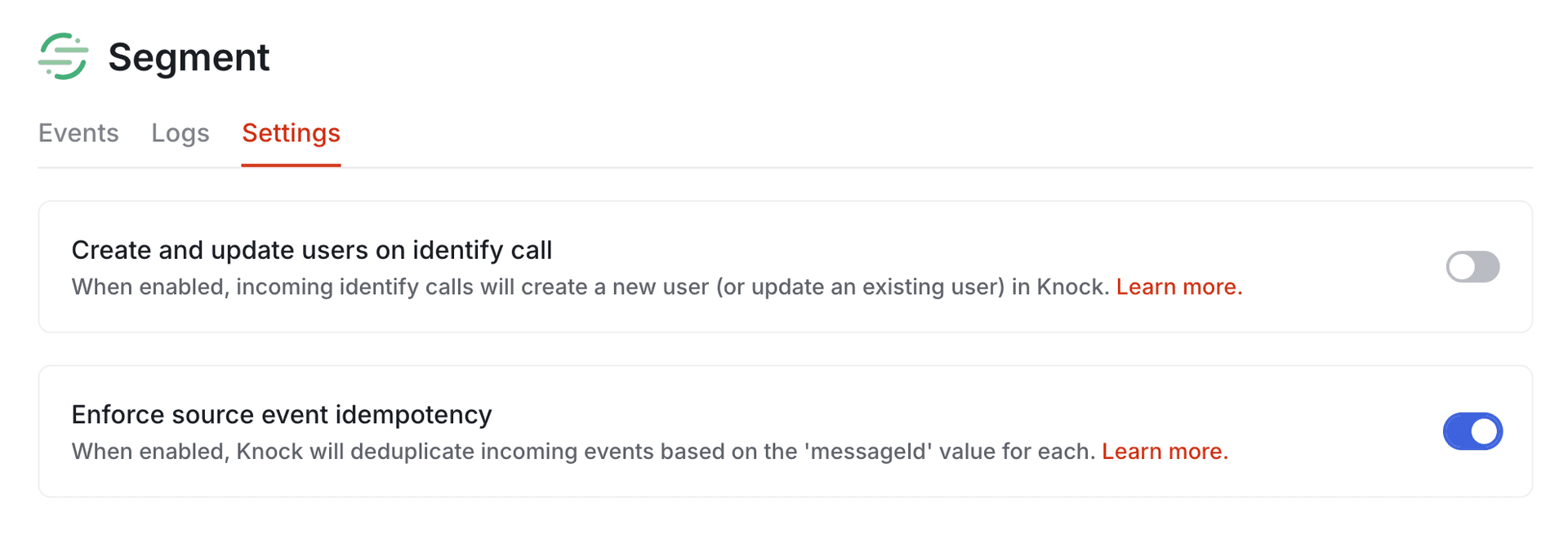
Because custom webhook payloads vary by service, you need to specify which field in the incoming payload contains the idempotency key. Configure the idempotency key path in the Settings tab for your source environment configuration, along with toggling idempotency checks on.
For example, if your service sends payloads with a unique event identifier:
You would set the idempotency key path to event_id so Knock can use it for deduplication.
Events without a value at the configured key path are processed normally. For details on how Knock handles idempotent events, key validation rules, and the default 24-hour idempotency window, see the source event idempotency section of the sources overview.
Legacy HTTP source
#The legacy HTTP source creates a generic event ingestion endpoint that accepts events structured according to the Segment track spec. The events you stream into the HTTP source can be used to trigger Knock notification workflows.
Knock can receive any structured event data via the legacy HTTP source, as long as you format the payload as JSON and make an HTTP request from the service that produces or consumes events.
Getting started (legacy)
#To get started you can create a new HTTP source by going to Integrations > Sources under your account settings and clicking "Create source." You'll have the opportunity to name the HTTP source and give it a description.
Once your source is created, you'll have a unique ingestion endpoint per environment to send events to. You can get each environment's endpoint by clicking the "Copy webhook destination URL" button.
Sending event data
#To start sending events to Knock, structure a JSON payload that matches the event schema below and submit it via a POST request to the ingestion endpoint. A well-formed event payload receives a 204 response code.
You also need to send the following headers with your request:
You need to send a single event at a time. There is no batch event ingestion endpoint.
Event schema
#Your events must be structured as JSON with the following schema:
Triggering workflows from received events
#Received events can be configured as workflow triggers directly in the workflow editor. Click on the workflow's trigger step and change the type from "API" to "Source Event." Then you can select the event and map its properties into the data the workflow needs.
Disabling a trigger
#Triggers are automatically enabled when you create them. If you want to stop an event from triggering a workflow, go to the trigger page and toggle its status to "Inactive." This disables that trigger for the current environment only. When you're ready to trigger the workflow again, set it back to "Active."
Mapping workflow trigger properties
#When creating workflow triggers from your events, you can optionally configure the schema mapping Knock uses to map your event properties into the corresponding workflow trigger properties.
To target any items under the properties key, prefix the schema mapping with data.propertyKey. As an example, if you have a property properties.recipientId you would map this as data.recipientId.
Debugging events (legacy)
#You can see a log of all events received per source under Integrations > Sources in the Knock dashboard under the "Logs" page for your configured source. You can also see any workflow triggers that were configured as part of the event ingestion, and any workflow runs that were triggered.